
Split PDF online free
SPLIT PDF
Click to upload or drag and drop
PDF file only
Extract specific pages or ranges separated by commas.
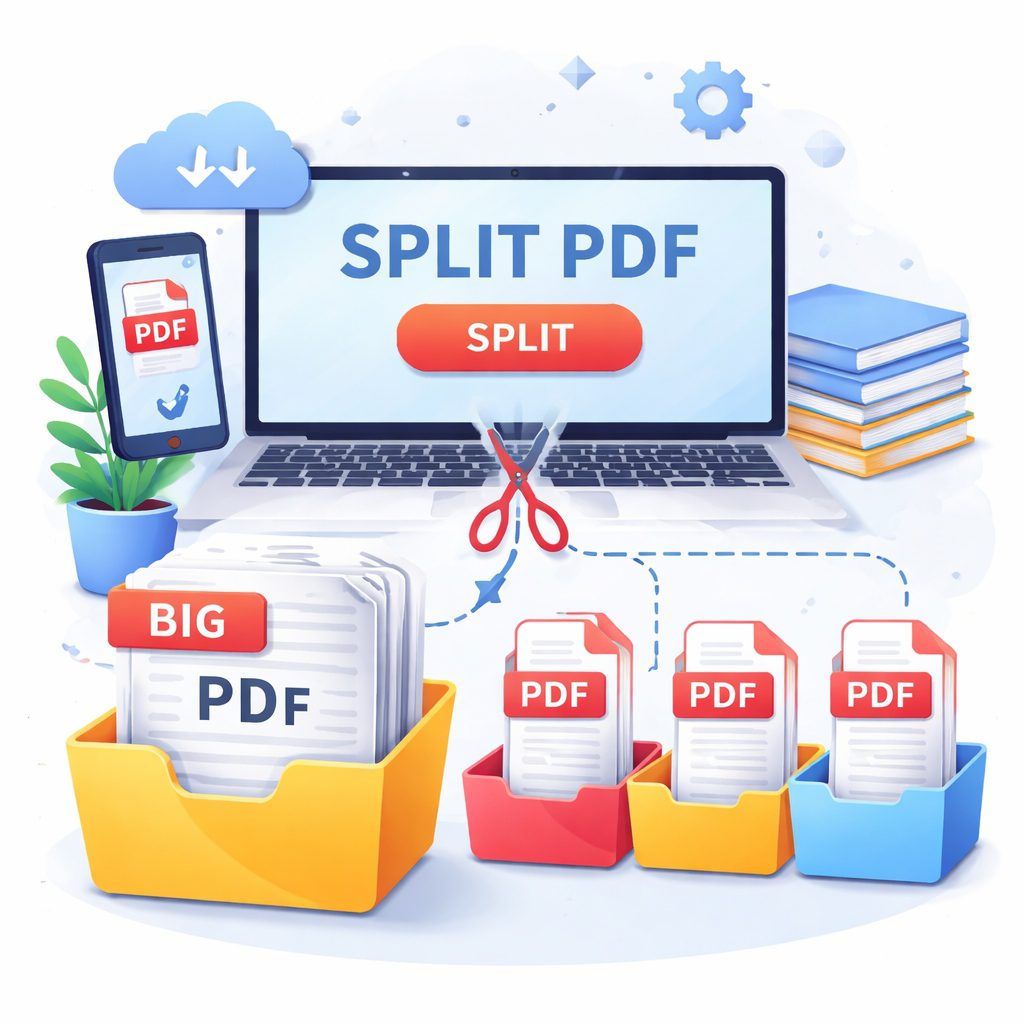
Have you ever received a massive, hundreds-of-pages-long digital document, only to realize you just need two or three specific pages from it? We have all been in that exact situation. Maybe it is a huge employee handbook, but you only need the page about holiday policies. Or perhaps it is a long digital textbook, and you just want to save one single chapter for your upcoming exam. Trying to navigate through endless pages just to find the information you need can be incredibly frustrating. This is exactly where the ability to Split PDF files comes to the rescue. By learning how to split PDF online free, you can instantly break apart those heavy, bulky documents and extract exactly what you want, leaving the rest behind.
In this comprehensive, friendly guide, we are going to explore everything you need to know about breaking your documents into smaller, more manageable pieces. The portable document format is fantastic because it preserves the exact look of your text and images no matter what device you are using. However, because they are so fixed and rigid, editing them or taking them apart used to require expensive, complicated computer software. Thankfully, things have changed. Today, you do not need to be a technical genius or spend any money to organize your files.
Throughout this article, we will walk you through the everyday reasons why dividing your files is a game-changer for your productivity. We will look at how the process actually works, step-by-step, so you feel completely confident doing it yourself. We will also cover the essential safety features you should always look for to ensure your private information stays secure on the internet. Whether you are a busy student, a professional working from home, or just someone trying to organize personal digital receipts, mastering this simple skill will save you a tremendous amount of time and effort. Let’s dive right in and learn how to take total control of your digital paperwork!
Why You Need to Split PDF Files in Your Daily Life
You might be wondering if dividing a document is really something you need to do that often. The truth is, once you start using a tool to Split PDF documents, you will realize how many daily annoyances it actually solves. We consume more digital information now than ever before, and managing that information efficiently is key to staying organized and stress-free.
Let’s look at some of the most common, everyday scenarios where breaking a large file into smaller pieces is incredibly helpful:
Sharing Only What is Necessary: Imagine you receive a 50-page legal contract, but you only need your business partner to review and sign page 42. Sending them the entire 50-page file can cause confusion. They might read the wrong section or get overwhelmed by the sheer size of the document. By dividing the file and sending only page 42, you ensure clear communication and save everyone’s time.
Protecting Your Privacy: This is a big one. Suppose your accountant sends you a single file containing your entire year’s tax returns, but you only need to send the first page to your bank to prove your income for a loan. If you send the whole file, you are handing over deeply personal financial data that the bank does not need to see. By extracting just the first page, you protect your sensitive information.
Overcoming Email Attachment Limits: Almost all email providers, like Gmail or Yahoo, have a strict file size limit (usually around 25MB). If someone sends you a massive portfolio full of high-resolution images, you might not be able to forward it to someone else. By splitting the document into two or three smaller files, you can easily attach them to separate emails without getting an error message.
Better File Organization: If you scan a stack of paper receipts all at once, your scanner will likely create one giant file called “Scanned_Documents.pdf”. Finding a specific receipt in that file months later will be a nightmare. If you separate that large file into individual pages and name them properly (like “Internet_Bill_Jan.pdf” and “Office_Supplies.pdf”), your computer folders will be much cleaner and easier to search.
Saving Storage Space: Sometimes we download large manuals or e-books but only care about a few specific chapters. Storing a 500-page file takes up valuable space on your phone or laptop hard drive. By pulling out just the chapters you actually intend to read and deleting the original massive file, you free up memory space for your photos and apps.
As you can see, the ability to Split PDF files is not just a neat trick; it is a vital tool for digital organization, clear communication, and personal privacy.
How to Use a Split PDF Tool Step-by-Step
Now that we know how useful it is, let’s talk about the actual process. The good news is that learning how to Split PDF files is incredibly easy. Modern online tools are designed with simplicity in mind. You do not need to install heavy programs or read confusing instruction manuals. As long as you have an internet connection and a web browser, you are ready to go.
Here is a friendly, step-by-step guide on how to divide your documents quickly and easily:
Find a Trusted Free Service: Open your browser and go to a reliable platform that offers document division for free. Look for a clean website that does not have confusing pop-up ads covering the screen.
Upload Your Big Document: Once you are on the site, you will see a big button that usually says “Choose File” or “Select Document.” Click it to find the file on your computer or phone. Many platforms also let you drag the file from your folder and drop it right onto the webpage. You can often even connect directly to Google Drive or Dropbox to pull your file from the cloud.
Choose Your Splitting Mode: This is the most important step. Most good tools will give you a visual preview of your document, showing little thumbnails of all the pages. You generally have a few different options for how you want to divide it:
Custom Range: This lets you tell the tool, “I only want pages 5 through 10.” The tool will pull those specific pages out and create a brand new, 6-page file for you.
Fixed Intervals: This is great for large scanned batches. You can tell the tool to “split the file every 2 pages.” If you have a 10-page document, you will end up with five separate 2-page files.
Extract All Pages: This option takes a, for example, 20-page document and turns it into 20 separate, individual files, one for each page.
Hit the Action Button: After you have selected exactly what you want, look for the button that says “Split” or “Process.” Click it. The website’s servers will do all the heavy lifting in a matter of seconds.
Download Your New Files: When the process is finished, a download screen will appear. If you extracted multiple different parts, the website will usually pack them neatly into a “ZIP” folder so you can download them all at once with a single click. Save the new files to a folder where you can easily find them later.
And that is it! In just five simple steps, you have successfully learned how to Split PDF documents. It is a fast, straightforward process that anyone can master in minutes.
Table of Contents
Top Features to Look for in a Reliable Splitter
While there are hundreds of websites that allow you to Split PDF files, they are not all created equal. When you are dealing with your personal or professional documents, you want to make sure you are using a platform that is high-quality, reliable, and above all, safe. It is important to know what features make a tool trustworthy so you do not accidentally compromise your digital security or ruin the quality of your documents.
Here are the top features you should actively look for when choosing a free online document divider:
Top-Notch Security and Auto-Deletion: This is the most critical feature. When you upload a file to the internet, it goes to a server. A trustworthy service will clearly state on its homepage that it automatically deletes your files from its servers shortly after you are done (usually within one to two hours). This guarantees that your sensitive data does not stay on the internet. Also, look for the padlock icon in your browser’s address bar; this means the site uses SSL encryption, keeping your file safe from hackers while it uploads.
Visual Page Previews: The best tools do not just ask you to blindly type in page numbers. They show you a clear, visual thumbnail of every single page in your document. This is incredibly helpful because you can visually confirm that page 7 is actually the specific graph you want before you extract it.
No Quality Loss: A good platform will extract your pages perfectly. It should act like a pair of digital scissors, cleanly cutting the pages out without touching the ink. If you notice that your extracted pages look blurry or the fonts have changed, stop using that tool immediately. The process should be 100% lossless.
No Mandatory Account Registration: You should be able to complete a simple task without having to give away your email address, create a password, or sign up for a newsletter. The best free tools let you jump right in, do your work, and leave without asking for your personal information.
Cloud Storage Integration: It is highly convenient when a tool allows you to save your newly divided files directly back to your Google Drive or Dropbox account. This saves you the extra step of downloading the file to your computer and then uploading it again to your cloud storage.
Mobile Friendliness: Sometimes you need to fix a document while you are on the go. A reliable tool should have a responsive website that works just as smoothly on your smartphone’s internet browser as it does on a large desktop computer monitor.
By keeping an eye out for these features, you can ensure that every time you need to Split PDF files, the process will be secure, high-quality, and totally frustration-free.
Pro Tips for Managing Your Extracted Pages Efficiently
You have successfully learned how to Split PDF files and what tools to trust. But what happens after you hit the download button? Proper document management does not stop just because you have made the files smaller. If you want to keep your digital workspace neat and professional, you need a good system for handling those newly extracted pages.
Here are some friendly, professional tips to help you manage your digital files like a pro:
First, always establish a clear naming routine. When you download a divided file, it will often have a generic name like “document_pages_1_to_3.pdf”. If you leave it like that, you will forget what it is by next week. The moment you download it, right-click and rename it to something highly descriptive. Include the date, the subject, and the client name if applicable. For example, “2026_Jan_Marketing_Budget_Summary.pdf” is much better than “split_file_final.pdf”. A clear name saves you from having to open the file just to see what is inside.
Second, avoid desktop clutter. It is very tempting to save all your downloaded files directly to your computer’s main desktop screen. Before long, your background image will be completely covered in messy file icons. Create a specific folder in your Documents drive called “Processed Files” or “Current Projects” and save your new files there immediately.
Third, remember to double-check the final result before you send it to anyone. While good tools are highly reliable, it is always a smart habit to open your newly divided file and quickly scroll through it. Make sure the pages are in the right order and that you didn’t accidentally include a page you meant to leave behind. A ten-second visual check can save you from a potentially embarrassing email mistake.
Finally, keep your original master file safe until you are absolutely sure you do not need it anymore. If you extract three pages from a 100-page report and then immediately delete the 100-page report, you might regret it if your boss suddenly asks for page 50 the next day. Keep the original, large file in an “Archive” folder just in case.
In Conclusion
Managing bulky, heavy digital files does not need to cause you stress. As we have explored throughout this guide, the ability to Split PDF documents is a highly practical skill that instantly improves how you handle information. By separating large files into smaller, focused documents, you can share information faster, protect your personal privacy, and keep your computer files neatly organized.
Remember to always prioritize your digital safety by using reputable, secure tools that automatically delete your data, and take a few extra seconds to rename your new files clearly. Now that you understand exactly how it works, you never have to be intimidated by a massive 500-page document again. Are you ready to organize your digital life? Find a trusted free tool today, upload that bulky document that has been sitting on your desktop, and experience how easy it is to extract exactly what you need!
FAQs: Split PDF online free
Q1: Will splitting my document change the quality of the text or images?
No, it will not. A high-quality tool acts like a digital page extractor. It simply separates the pages without altering the content on them, ensuring your text remains sharp and your images stay crystal clear.
Q2: Is it safe to upload confidential work documents to a free website?
Yes, as long as you choose a reputable platform. Always look for a website with an SSL connection (the padlock icon in your browser) and a strict privacy policy that promises to automatically delete your files from their servers within a few hours.
Q3: Do I need to pay or buy a subscription to use these tools?
Not for basic, everyday use. There are many fantastic “Split PDF online free” services available that do not charge you money. However, if you are a business user who needs to process hundreds of massive files every single day, you might eventually need to look into a paid premium plan for unlimited access.
Q4: Can I divide a document on my mobile phone?
Absolutely. You do not need a desktop computer or special mobile apps. You can simply open your phone’s web browser (like Safari or Chrome), navigate to a free tool, and upload the file directly from your phone’s storage.
Q5: What do I do if my document requires a password to open?
If a file is locked with security encryption, the splitting tool will not be able to read the pages. You will first need to know the password to unlock the document. Once it is unlocked and the security is removed, you can easily divide it just like any regular file.