CROP PDF
PDF Controls
Drag & drop a PDF file here
or click to browse
Max file size: 10MB
Crop Settings
How to Use
- Upload a PDF file using the button above
- Select the page range you want to crop
- Adjust margins or use the crop selection tool
- Click “Crop PDF” to apply changes
- Download your cropped PDF when ready
PDF Preview & Crop Area
Loading PDF document…
No PDF Loaded
Upload a PDF file using the controls on the left to start cropping. You can drag and drop or click the browse button.
CROP PDF – Crop PDF Pages Easily Online
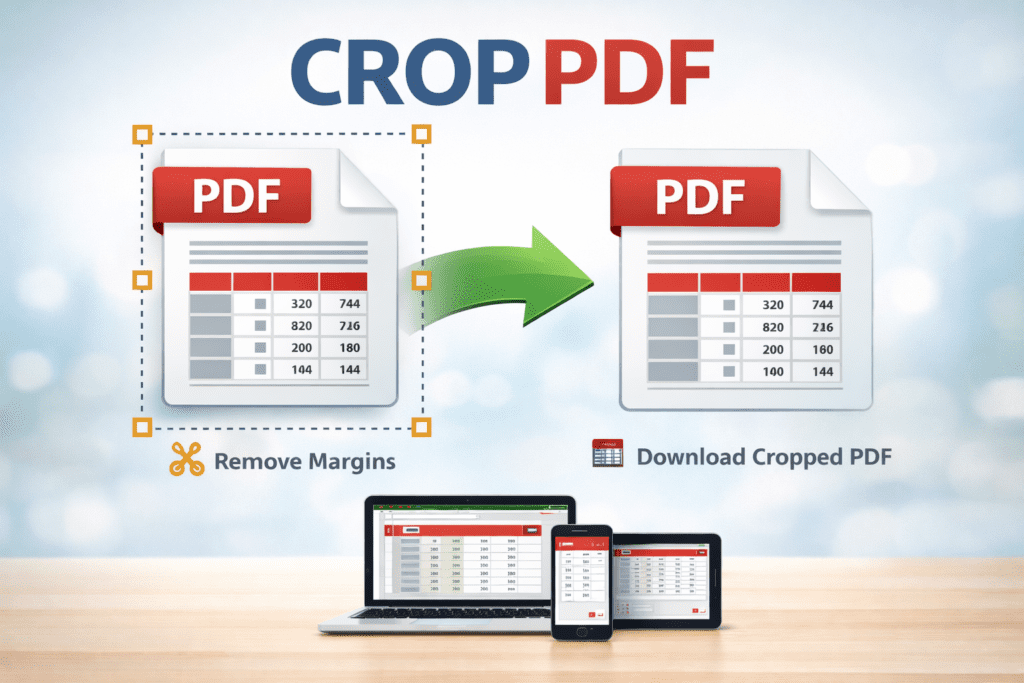
CROP PDF helps you remove unwanted areas from PDF pages quickly. With CROP PDF, you can adjust page margins and keep only the content you need.
CROP PDF is helpful for students, teachers, and office workers. It allows you to remove extra white space from PDF pages. As a result, documents look clean and more professional.
Many PDF files have unnecessary margins or empty areas. Therefore, CROP PDF is useful when you want to focus on important content only. It keeps the original file safe while creating a new one.
Using CROP PDF is very easy. First, upload your PDF file. Then, adjust the page margins as needed. Finally, download the cropped PDF file. Even beginners can use it without any difficulty.
Whether you are working with study notes, reports, or scanned documents, CROP PDF saves time. Moreover, it works smoothly on mobile phones, tablets, and computers. This makes it perfect for daily use.
How CROP PDF Works
CROP PDF removes extra margins from PDF pages and keeps only the selected area.
Why Use CROP PDF
CROP PDF helps improve document appearance and makes PDF files easier to read.
Easy Way to Crop PDF Pages
With CROP PDF, cropping pages takes only a few clicks. No installation or technical skills are required.
Q&A
What is CROP PDF?
CROP PDF allows you to remove unwanted areas from PDF pages.
Can I crop PDF pages on mobile?
Yes, CROP PDF works on mobile phones, tablets, and desktop computers.
Is CROP PDF free to use?
Yes, CROP PDF is free and works completely online.