
Image-to-Base64 Online Free
IMAGE TO BASE64 CONVERTER
INSTANTLY ENCODE IMAGES FOR THE WEB
Drop your image here
JPEG, PNG, WebP, GIF, SVG
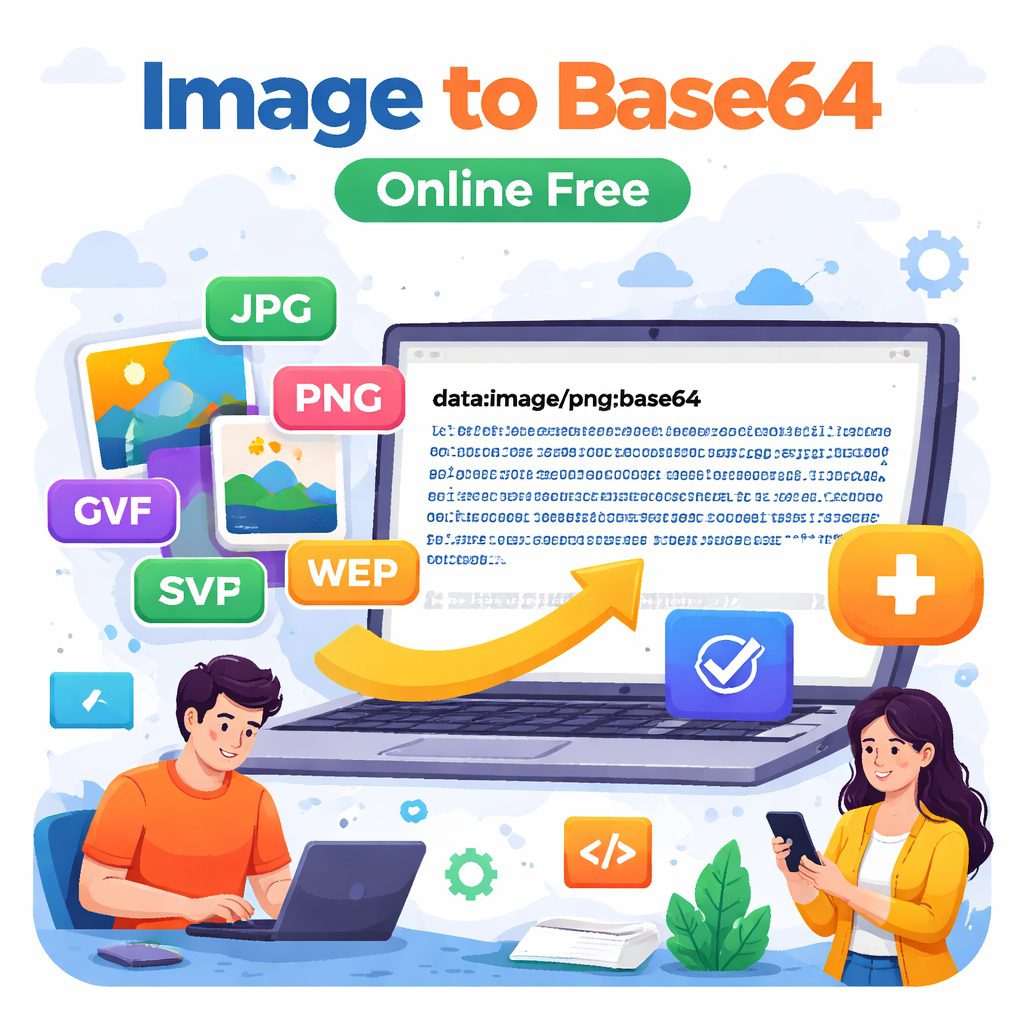
Welcome! If you are looking to speed up your website, embed visuals directly into your code, or simply learn more about data encoding, finding a reliable image-to-base64 online free tool is a fantastic first step. You might have heard developers talking about converting pictures into long strings of text and wondered how that works. Simply put, an image-to-base64 converter takes your standard picture file and translates it into a sequence of letters, numbers, and symbols. This text can then be pasted directly into your HTML or CSS files, allowing web browsers to display the visual without needing to load an external file from a server.
When you build a website, every picture, script, and stylesheet typically requires a separate trip to the server to fetch the data. If you have a page with thirty small icons, that means thirty separate requests slowing down your loading time. By using an image-to-base64 tool, you completely bypass this process for those files. You just drop JPEG, PNG, WebP, GIF, or SVG images into the converter, grab the text code it generates, and paste it into your project. The browser reads the text and instantly draws the picture.
In this comprehensive guide, we are going to explore everything you need to know about this process. We will look at why you might want to encode your files, the technical magic that happens behind the scenes, the pros and cons of using this method, and how to do it step-by-step. Our goal is to provide you with expert, accurate, and easy-to-understand information so you can make the best choices for your web design or email marketing projects. Let us dive into the world of Base64 encoding and see how it can streamline your digital workflow!
Why You Should Drop JPEG, PNG, WebP, GIF, or SVG Images into a Converter
You might be asking yourself why anyone would want to turn a perfectly good picture into a giant wall of text. The answer comes down to web performance, asset management, and offline capabilities. When you drop JPEG, PNG, WebP, GIF, or SVG images into an encoder, you are fundamentally changing how a web browser interacts with that asset. Let us break down the main reasons developers and designers choose to use the image-to-base64 method.
Reducing HTTP Requests: This is the most common reason to use Base64 encoding. Every time a user visits your website, their browser has to download all the individual files that make up the page. In older HTTP protocols, these downloads often happened one by one. If you have a lot of small graphics, like social media icons or UI buttons, these tiny requests can create a bottleneck. By converting these small graphics into text and putting them straight into your CSS or HTML, the browser downloads the page code and the graphics all at the exact same time.
Creating Single-File Projects: Sometimes, you need to build a web project that exists entirely inside a single HTML file. This is common for certain types of ad banners, offline web applications, or specific HTML email templates. If you cannot link to external folders or host visuals on a server, your only option is to embed them. An image-to-base64 converter makes this possible.
Bypassing Email Client Image Blocking: Email marketing is notoriously tricky. Many email clients, like Outlook or Gmail, will block external visuals by default to protect user privacy and save bandwidth. Users have to manually click a button to “download pictures.” However, if you encode a small logo or signature graphic using Base64 and embed it directly into the email’s code, some email clients will render it immediately because it is part of the code itself, not a tracking pixel hosted elsewhere.
Format Flexibility: Modern converters are highly versatile. You do not just have to stick to photographs. You can drop JPEG, PNG, WebP, GIF, or SVG images into these tools. Want to embed an animated GIF for a loading screen? You can encode it. Want to ensure your crisp, vector-based SVG logo loads instantly without an extra network trip? Base64 can handle that too. WebP files, which are already highly compressed, are also great candidates for encoding when you want to combine fast load times with embedded code.
Easier Code Portability: When you are sharing code snippets on platforms like CodePen or JSFiddle to get help from other developers, dealing with broken visual links can be annoying. By converting your demo graphics to Base64 text, you ensure that anyone who copies or views your code sees exactly what you see, without needing to host the files on a third-party server.
While it is clear that there are many great reasons to use this technology, it is also important to understand the mechanics of how it actually translates a visual graphic into plain text.
The Mechanics Behind image-to-base64 Conversion
To truly appreciate the value of an image-to-base64 online free tool, it helps to understand the basic science behind it. You do not need a degree in computer science to grasp the concept, but knowing the fundamentals will help you troubleshoot issues and use the technology more effectively.
At its core, every file on your computer—whether it is a song, a text document, or a photograph—is stored as binary data. Binary is a massive sequence of ones and zeros. Computers read these ones and zeros perfectly, but many older communication systems, text editors, and data protocols were only designed to handle basic text characters, specifically the ASCII standard (letters, numbers, and basic punctuation). If you try to force raw binary data into a system that only expects text, the system will get confused, resulting in scrambled data or broken files.
Base64 was invented as a bridge between these two worlds. It is a mathematical process that takes raw binary data (the ones and zeros of your picture) and translates it into a safe, universally readable alphabet.
The name “Base64” comes from the fact that it uses an alphabet of exactly 64 characters to represent the data. These characters are:
Uppercase letters: A through Z
Lowercase letters: a through z
Numbers: 0 through 9
Two symbols: Usually the plus sign (+) and the forward slash (/)
When you upload a file to an image-to-base64 converter, the tool reads the binary code of the file. It takes that binary code in small chunks and assigns a specific character from the 64-character alphabet to each chunk. The result is a very long, continuous string of text.
For example, a tiny red dot might look like this when converted: data:image/png;base64,iVBORw0KGgoAAAANSUhEUgAAAAUAAAAFCAYAAACNbyblAAAAHElEQVQI12P4//8/w38GIAXDIBKE0DHxgljNBAAO9TXL0Y4OHwAAAABJRU5ErkJggg==
Let us break down what that string actually means. It is divided into two main parts. The first part is the Data URI scheme. This tells the browser exactly what kind of information it is about to read. In our example, data:image/png;base64, is the declaration. It says, “Hey browser, here comes some data. It is an image, specifically a PNG format, and it is encoded using Base64.”
The second part, everything after the comma, is the actual encoded graphic. The browser reads that long string of random-looking letters and numbers, reverses the mathematical process, turns it back into binary ones and zeros, and instantly draws the red dot on your screen.
This process happens in milliseconds. Because the alphabet used is so standard, you can paste this code into an HTML document, a CSS stylesheet, or a JSON file, and you will not break the formatting or trigger any data corruption errors. It is a safe, reliable way to transport complex media through text-only channels.
Pros and Cons of Base64 Image Encoding
Like any technique in web development, using an image-to-base64 approach is not a magic solution for every single problem. There is a delicate balance to strike. While it solves specific performance issues, it can create entirely new problems if used incorrectly. Let us take an honest, factual look at the advantages and the potential drawbacks so you can make an informed decision for your site.
The Pros:
Instant Rendering for Critical Assets: If you have a critical graphic that must be visible the exact moment your website loads—like a brand logo in the header or a background pattern for your main menu—Base64 is incredibly useful. Because the graphic is part of the initial HTML or CSS download, there is zero delay. The user does not see a blank space while waiting for a server to respond.
Fewer Server Requests: As mentioned earlier, reducing HTTP requests is a cornerstone of web performance optimization. Every time a browser asks a server for a file, it takes time to establish a connection, send the request, and receive the data. By eliminating these requests for small, frequently used icons, you free up the browser to download larger, more important files faster.
Perfect for Simple Web Applications: If you are building a small web tool, a browser extension, or a standalone widget, keeping all your assets contained within a single file makes the project much easier to distribute and manage. You do not have to worry about broken folder paths or missing asset folders.
Security and Hotlinking Prevention: When your graphics are just strings of text embedded in your code, it becomes much harder for other people to “hotlink” them. Hotlinking is when another website uses your server bandwidth to display your pictures on their site. While they could theoretically copy your Base64 text, they cannot drain your server resources by linking directly to a file URL.
The Cons:
Increased File Size: This is the biggest drawback. The mathematical translation process is not perfectly efficient. When you convert binary data into Base64 text, the resulting text string is almost always about 33% larger than the original file size. If your original JPEG was 100 Kilobytes, the resulting text string will be roughly 133 Kilobytes.
Bloated HTML and CSS Files: Because the encoded text is larger, pasting it into your code makes your HTML or CSS files significantly heavier. If a browser has to download a massive, multi-megabyte CSS file because it is full of encoded photographs, the entire website will load painfully slowly. The browser cannot draw any of the page until that bloated text file is fully downloaded and parsed.
Poor Browser Caching for HTML: Browsers are very smart about saving (caching) standard files. If you visit a website with a standard logo image, your browser saves that logo. When you click to another page on the same site, the browser just loads the saved logo from your hard drive instantly. However, if that logo is hardcoded into the HTML via Base64, the browser has to re-download that massive chunk of text every single time you load a new HTML page. (Note: Embedding Base64 in external CSS files does allow for caching, which is the preferred method).
Difficult to Edit: Once a graphic is converted into a giant block of random letters, you cannot just open it in Photoshop to make a quick color tweak. You have to find the original file, make the edit, run it through the image-to-base64 converter again, delete the old wall of text from your code, and paste in the new one. This can slow down your workflow significantly.
The golden rule is this: Only encode very small graphics. Tiny icons, small repeating background patterns, and simple logos are perfect candidates. Large photographs, massive hero banners, and detailed illustrations should always remain as standard external files to keep your codebase clean and fast.
Step-by-Step Guide to Using an image-to-base64 Tool and Conclusion
Now that you understand the theory and the best use cases, let us walk through exactly how to use an image-to-base64 online free tool. The process is incredibly straightforward and requires no coding experience to execute.
Step 1: Optimize Your Original File Before you even touch an encoder, make sure your graphic is as small as possible. Use compression software to strip out unnecessary metadata and reduce the file size. Remember, any extra weight in the original file will be magnified by 33% during the conversion process. Ensure the dimensions are exactly the size you need them to be on the screen.
Step 2: Choose a Reliable Online Converter There are hundreds of free tools available on the web. A simple search will yield many results. Look for a tool that explicitly states it runs securely in your browser (meaning your files are not uploaded to a remote server, ensuring privacy) and supports modern formats.
Step 3: Upload Your File Once you are on the tool’s website, simply drop JPEG, PNG, WebP, GIF, or SVG images directly into the upload area. Most modern tools support drag-and-drop functionality.
Step 4: Copy the Generated Code The tool will instantly process the file and present you with a few options. It will usually give you the raw string, a pre-formatted HTML <img> tag, and a pre-formatted CSS background-image property. Choose the format that fits your current project needs and copy it to your clipboard.
Step 5: Paste and Test Open your code editor and paste the string exactly where the file path URL would normally go. Save your document, open it in a web browser, and verify that the graphic renders correctly. If it looks broken, double-check that you copied the entire string without missing the final characters or accidentally deleting the data:image/... prefix.
FAQs: image-to-base64 online free
Q1: What does it mean to convert an image to Base64?
Converting a graphic to Base64 means taking the binary data (the ones and zeros) that make up the file and translating it into a standard alphabet of 64 characters (letters, numbers, and symbols). This creates a long string of text that can be safely embedded directly into text-based code files like HTML or CSS, allowing browsers to render the visual without needing an external file link.
Q2: Is an image-to-base64 online free tool safe to use?
Yes, most free online tools are completely safe, especially those that process the conversion locally within your web browser using JavaScript. This means your files never actually leave your computer or get uploaded to an external server. However, if you are encoding highly sensitive or confidential documents, it is always best practice to use an offline, local command-line tool or a trusted script just to be absolutely certain of your privacy.
Q3: Does converting an image to Base64 reduce its file size?
No, it actually does the opposite. The mathematical process of translating binary data into text characters is not perfectly efficient. The resulting encoded text string will almost always be roughly 33% larger in file size than the original visual file. This is why it is highly recommended to only encode very small files, like interface icons or small logos.
Q4: Where is the best place to paste the Base64 code?
The most optimal place to put your encoded strings is inside an external CSS file, used as a background-image property. The reason for this is browser caching. If you paste the massive string directly into your HTML code, the browser has to re-download that huge block of text every single time a user loads a new page on your site. If you put it in an external CSS file, the browser downloads the CSS file once, caches it, and uses it instantly across your entire website.
Q5: Can I convert animated GIFs or vector SVGs using these tools?
Yes, absolutely! You can drop JPEG, PNG, WebP, GIF, or SVG images into most modern converters. If you encode an animated GIF, the animation will still play perfectly when embedded in your HTML. If you encode an SVG, it will retain its scalable, vector properties. It treats all these formats purely as data to be translated.
Q6: When should image-to-base64 be avoided?
Avoid image-to-base64 for large images, galleries, and repeated assets where caching and performance are important.
Conclusion
In modern web development, speed and efficiency are everything. Knowing how and when to use an image-to-base64 workflow is a valuable skill in your optimization toolkit. By transforming small, critical visual assets into inline text, you can reduce server requests, speed up initial rendering times, and create more robust, self-contained web components.
Remember the core principles: use this method sparingly, stick to small files like icons or simple logos, and always optimize your graphics before converting them. While it is not a replacement for traditional image hosting, it is a powerful technique for solving specific performance bottlenecks.
By keeping your file sizes small and your HTML clean, you ensure a fast, seamless experience for your website visitors. Whether you are building an email template, a custom CSS theme, or an interactive web app, mastering data encoding gives you more control over how your digital assets behave.